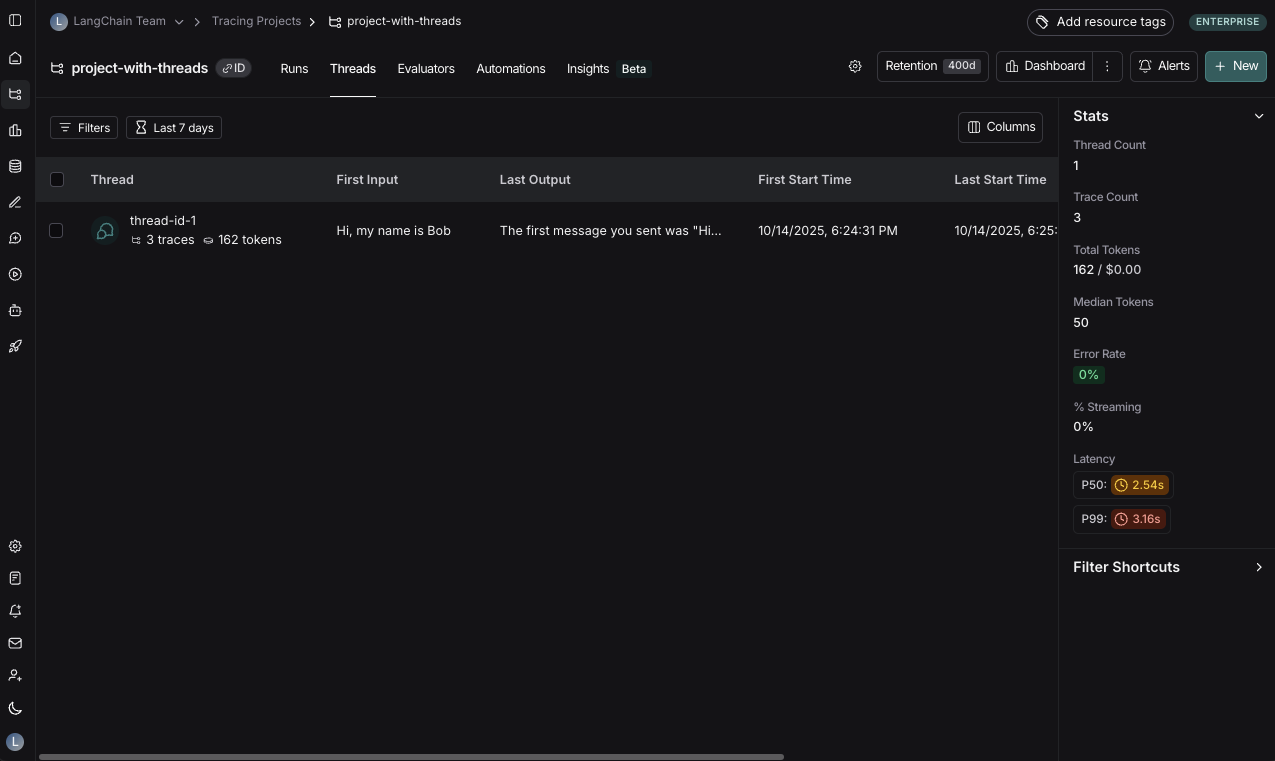
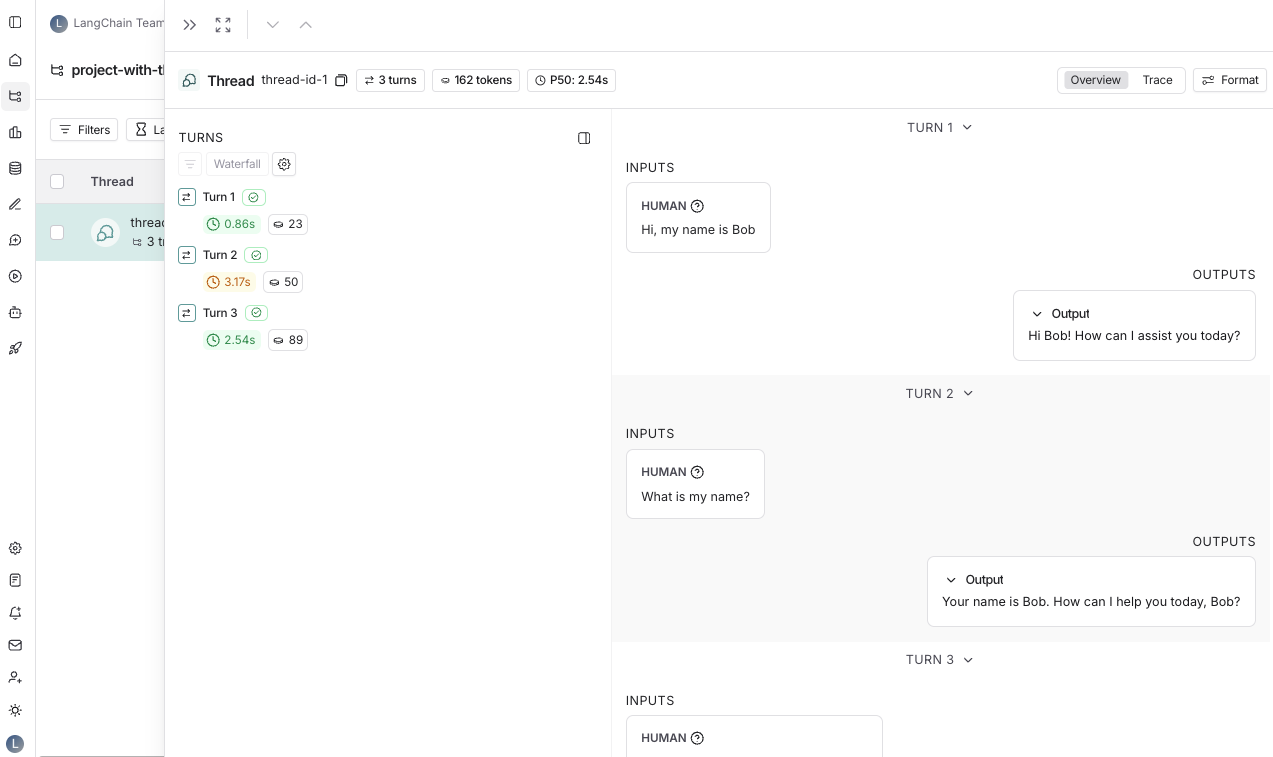
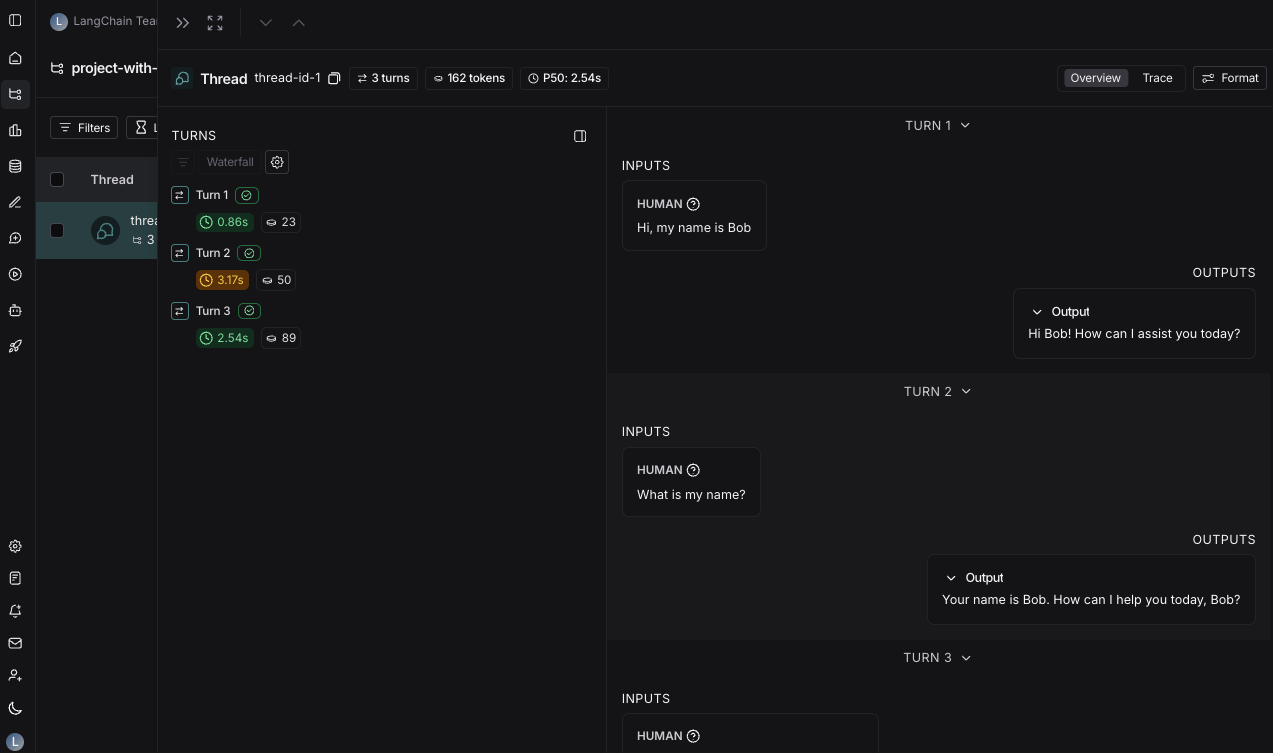
许多 LLM 应用程序都有类似聊天机器人的界面,用户和 LLM 应用程序进行多轮对话。为了跟踪这些对话,您可以使用 LangSmith 中的 Threads 功能。

将跟踪分组到线程中

Thread 是表示单个对话的跟踪序列。每个响应都表示为自己的跟踪,但这些跟踪通过成为同一线程的一部分而链接在一起。 要将跟踪关联在一起,您需要传入一个特殊的 metadata 键,其值是该线程的唯一标识符。键名应为以下之一:
  • session_id
  • thread_id
  • conversation_id
值可以是您想要的任何字符串,但我们建议使用 UUID,例如 f47ac10b-58cc-4372-a567-0e02b2c3d479。查看本指南以获取有关向跟踪添加元数据的说明。

示例

此示例演示如何使用结构化消息格式记录和检索对话历史以维护长时间运行的聊天。
import os
from typing import List, Dict, Any, Optional

import openai
from langsmith import traceable, Client
import langsmith as ls
from langsmith.wrappers import wrap_openai

# Initialize clients
client = wrap_openai(openai.Client())
langsmith_client = Client()

# Configuration
LANGSMITH_PROJECT = "project-with-threads"
THREAD_ID = "thread-id-1"
langsmith_extra={"project_name": LANGSMITH_PROJECT, "metadata":{"session_id": THREAD_ID}}

# gets a history of all LLM calls in the thread to construct conversation history
def get_thread_history(thread_id: str, project_name: str):
    # Filter runs by the specific thread and project
    filter_string = f'and(in(metadata_key, ["session_id","conversation_id","thread_id"]), eq(metadata_value, "{thread_id}"))'
    # Only grab the LLM runs
    runs = [r for r in langsmith_client.list_runs(project_name=project_name, filter=filter_string, run_type="llm")]

    # Sort by start time to get the most recent interaction
    runs = sorted(runs, key=lambda run: run.start_time, reverse=True)

    # Reconstruct the conversation state
    latest_run = runs[0]
    return latest_run.inputs['messages'] + [latest_run.outputs['choices'][0]['message']]


@traceable(name="Chat Bot")
def chat_pipeline(messages: list, get_chat_history: bool = False):
    # Whether to continue an existing thread or start a new one
    if get_chat_history:
        run_tree = ls.get_current_run_tree()
        # Get existing conversation history and append new messages
        history_messages = get_thread_history(run_tree.extra["metadata"]["session_id"], run_tree.session_name)
        all_messages = history_messages + messages
        # Include the complete conversation in the input for tracing
        input_messages = all_messages
    else:
        all_messages = messages
        input_messages = messages

    # Invoke the model
    chat_completion = client.chat.completions.create(
        model="gpt-4o-mini", messages=all_messages
    )

    # Return the complete conversation including input and response
    response_message = chat_completion.choices[0].message
    return {
        "messages": input_messages + [response_message]
    }

# Format message
messages = [
    {
        "content": "Hi, my name is Sally",
        "role": "user"
    }
]
get_chat_history = False

# Call the chat pipeline
result = chat_pipeline(messages, get_chat_history, langsmith_extra=langsmith_extra)

等待几秒钟后,您可以进行以下调用来继续对话。通过传递 get_chat_history=True,/getChatHistory: true, 您可以从上次中断的地方继续对话。这意味着 LLM 将接收整个消息历史记录并对其做出响应, 而不是仅响应最新消息。
# Continue the conversation.
messages = [
    {
        "content": "What is my name?",
        "role": "user"
    }
]
get_chat_history = True

chat_pipeline(messages, get_chat_history, langsmith_extra=langsmith_extra)
继续对话。由于包含了过去的消息,LLM 将记住对话。
# Continue the conversation.
messages = [
    {
        "content": "What was the first message I sent you?",
        "role": "user"
    }
]
get_chat_history = True

chat_pipeline(messages, get_chat_history, langsmith_extra=langsmith_extra)
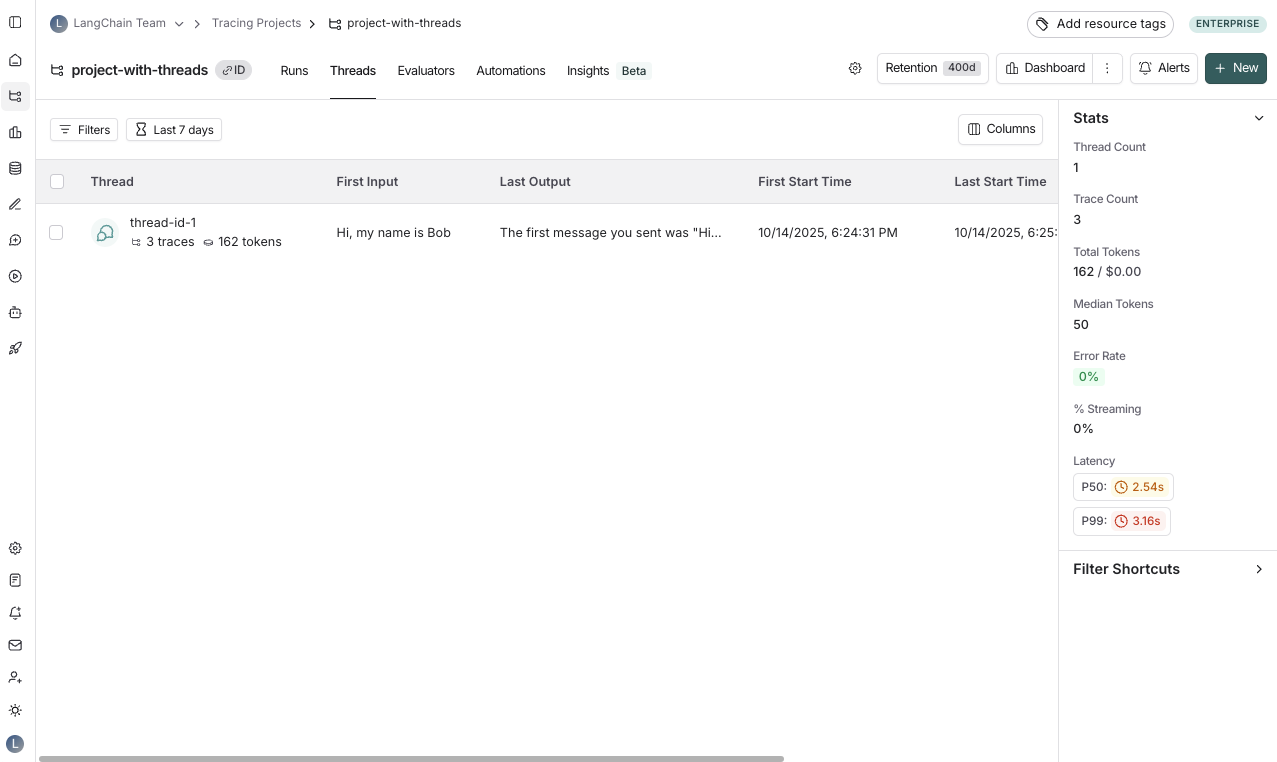
查看线程

您可以通过单击任何项目详细信息页面中的线程选项卡来查看线程。然后您将看到所有线程的列表,按最近的活动排序。
LangSmith UI showing the threads table.

View a thread

You can then click into a particular thread. This will open the history for a particular thread.
LangSmith UI showing the threads table.
Threads can be viewed in two different ways: You can use the buttons at the top of the page to switch between the two views or use the keyboard shortcut T to toggle between the two views.

Thread overview

The thread overview page shows you a chatbot-like UI where you can see the inputs and outputs for each turn of the conversation. You can configure which fields in the inputs and outputs are displayed in the overview, or show multiple fields by clicking the Configure button. The JSON path for the inputs and outputs supports negative indexing, so you can use -1 to access the last element of an array. For example, inputs.messages[-1].content will access the last message in the messages array.

Trace view

The trace view here is similar to the trace view when looking at a single run, except that you have easy access to all the runs for each turn in the thread.

View feedback

When viewing a thread, across the top of the page you will see a section called Feedback. This is where you can see the feedback for each of the runs that make up the thread. This feedback is aggregated, so if you evaluate each run of a thread for the same criteria, you will see the average score across all the runs displayed. You can also see thread level feedback left here.

Save thread level filter

Similar to saving filters at the project level, you can also save commonly used filters at the thread level. To save filters on the threads table, set a filter using the filters button and then click the Save filter button. You can open up the trace or annotate the trace in a side panel by clicking on Annotate and Open trace, respectively.
Connect these docs programmatically to Claude, VSCode, and more via MCP for real-time answers.