

先决条件
在开始之前,请确保您具备:- LangSmith 账户:在 smith.langchain.com 注册或登录。
- LangSmith API 密钥:遵循创建 API 密钥指南。
- OpenAI API 密钥:从 OpenAI 仪表板生成。
- UI
- SDK
1. Set workspace secret
在 LangSmith UI 中,确保您的 OpenAI API 密钥设置为工作区密钥。- 导航到 Settings,然后移至 Secrets 选项卡。
- 选择 Add secret 并输入
OPENAI_API_KEY以及您的 API 密钥作为 Value。 - 选择 Save secret。
在 LangSmith UI 中添加工作区密钥时,请确保密钥键与模型提供商预期的环境变量名称匹配。
2. Create a prompt
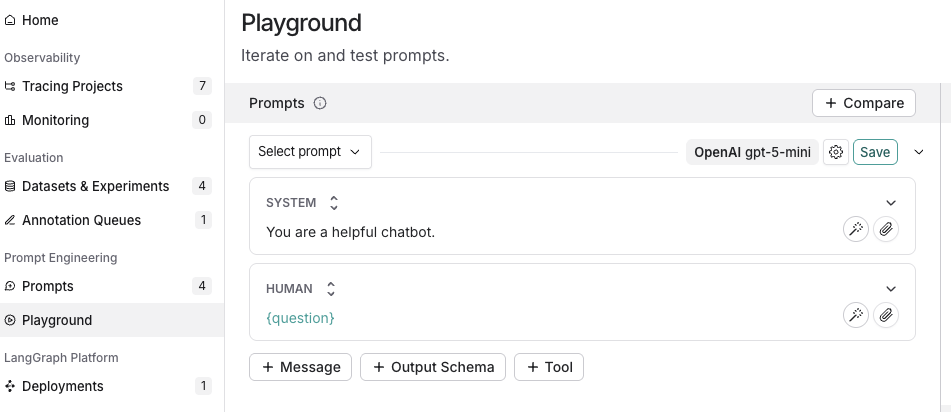
- In the LangSmith UI, navigate to the Prompts section in the left-hand menu.
- Click on + Prompt to create a prompt.
- Modify the prompt by editing or adding prompts and input variables as needed.

3. Test a prompt
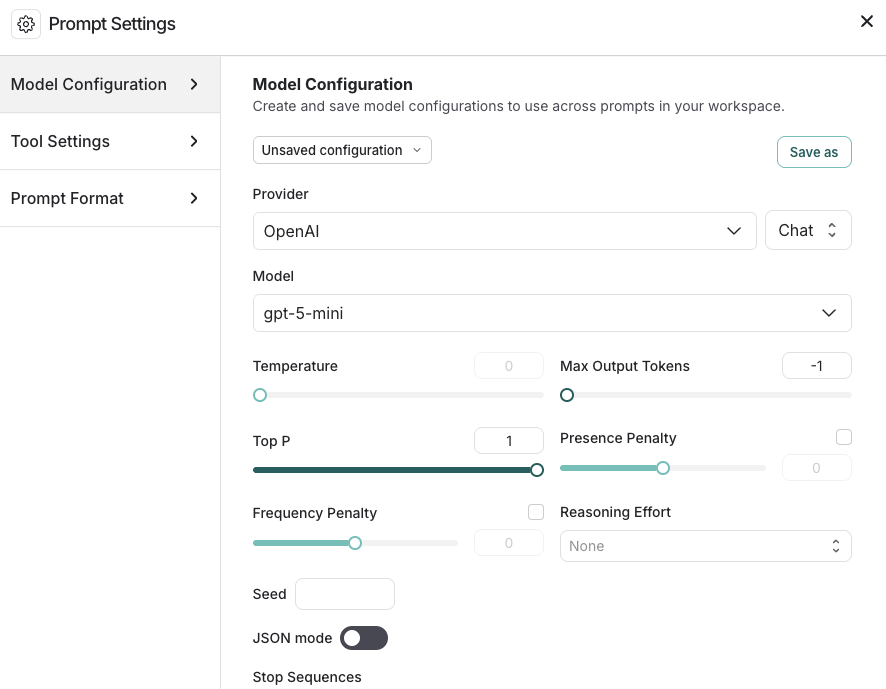
- Under the Prompts heading select the gear icon next to the model name, which will launch the Prompt Settings window on the Model Configuration tab.
-
Set the model configuration you want to use. The Provider and Model you select will determine the parameters that are configurable on this configuration page. Once set, click Save as.

-
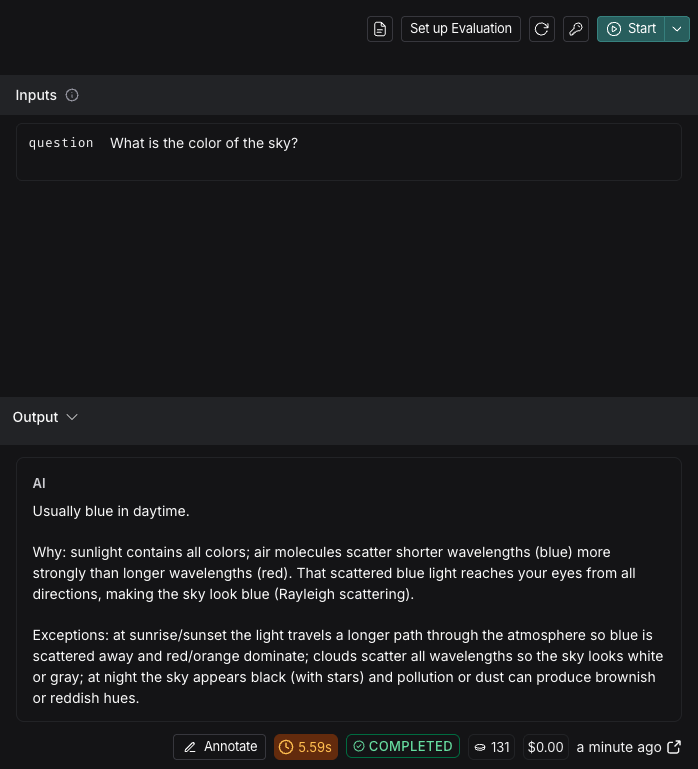
Specify the input variables you would like to test in the Inputs box and then click Start.
To learn about more options for configuring your prompt in the Playground, refer to Configure prompt settings.
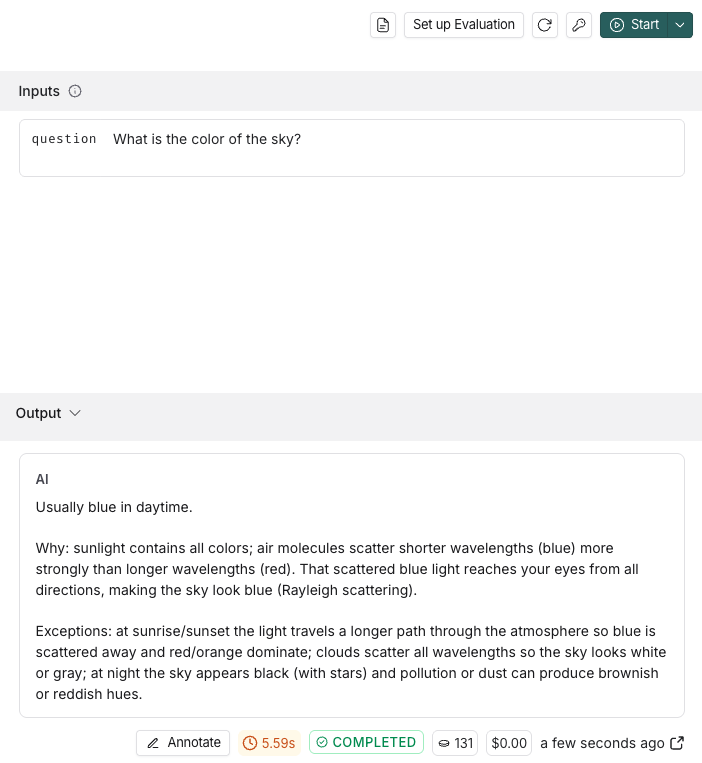
- After testing and refining your prompt, click Save to store it for future use.
4. Iterate on a prompt
LangSmith allows for team-based prompt iteration. Workspace members can experiment with prompts in the playground and save their changes as a new commit when ready.To improve your prompts:- Reference the documentation provided by your model provider for best practices in prompt creation, such as:
- Build and refine your prompts with the Prompt Canvas—an interactive tool in LangSmith. Learn more in the Prompt Canvas guide.
-
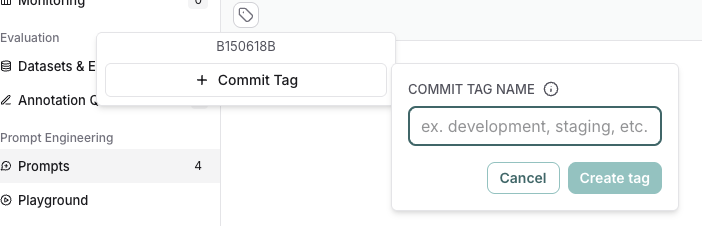
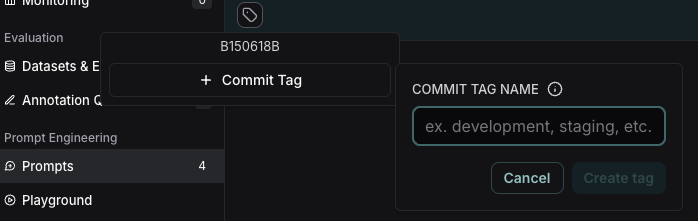
Tag specific commits to mark important moments in your commit history.
- To create a commit, navigate to the Playground and select Commit. Choose the prompt to commit changes to and then Commit.
- Navigate to Prompts in the left-hand menu. Select the prompt. Once on the prompt’s detail page, move to the Commits tab. Find the tag icon to Add a Commit Tag.
Next steps
- Learn more about how to store and manage prompts using the Prompt Hub in the Create a prompt guide.
- Learn how to set up the Playground to Test multi-turn conversations in this tutorial.
- Learn how to test your prompt’s performance over a dataset instead of individual examples, refer to Run an evaluation from the Prompt Playground.