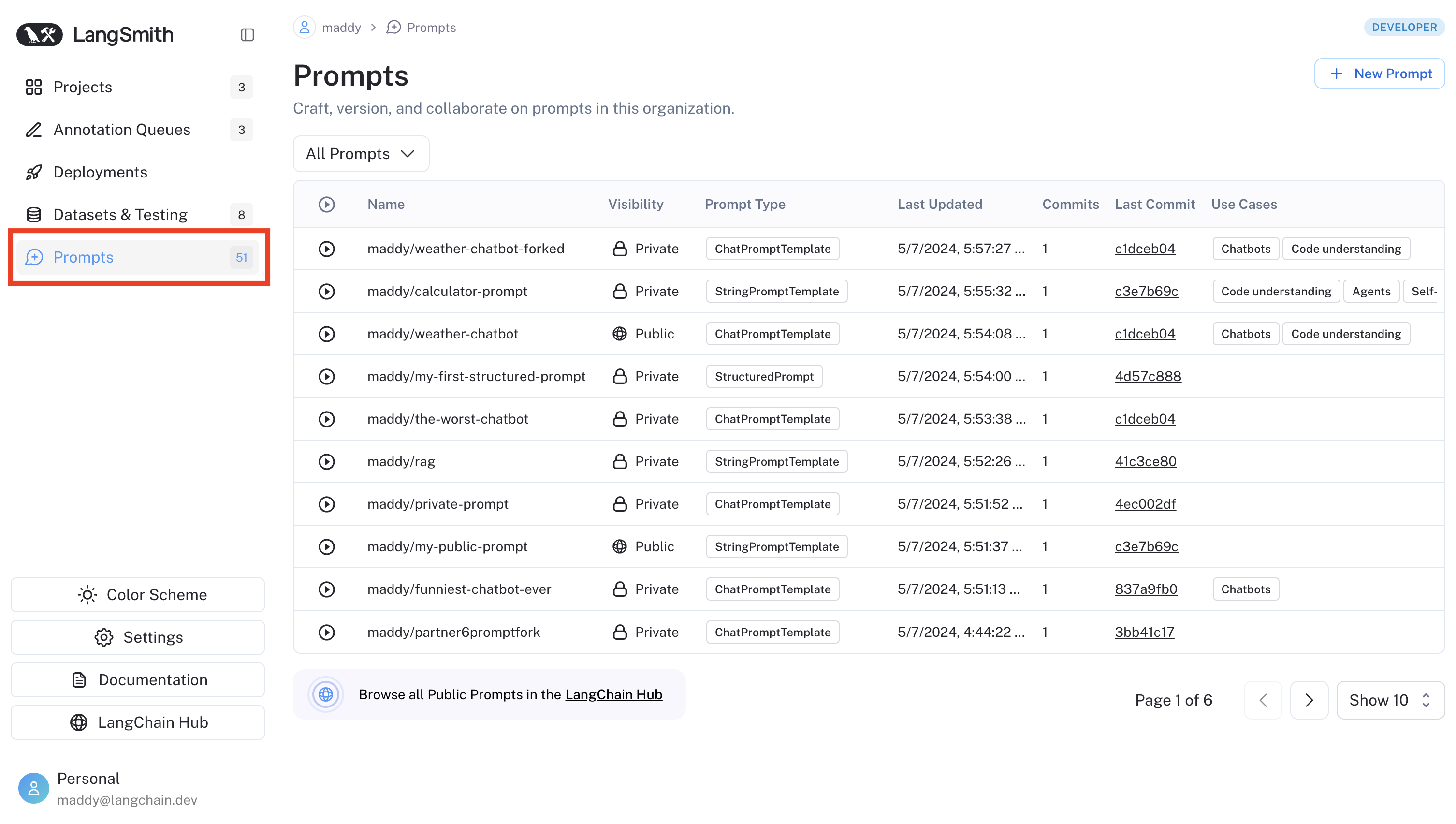
- 提交标签用于版本控制和环境管理。
- Webhook 触发器用于在更新提示时自动化工作流程。
- 公共提示中心用于发现和使用社区创建的提示。
提交标签
提交标签是引用提示版本历史中特定提交的标签。它们帮助您标记重要版本并控制哪些版本在不同环境中运行。通过在代码中引用标签而不是提交 ID,您可以更新正在使用的版本,而无需修改代码本身。 每个标签引用恰好一个提交,尽管您可以重新分配标签以指向不同的提交。不要与资源标签混淆:提交标签特定于提示版本控制,并引用提示历史中的单个提交。资源标签是用于组织工作区资源(如项目、数据集和提示)的键值对。虽然两者都可以使用类似的命名约定(如
prod 或 staging),但提交标签控制提示的哪个版本运行,而资源标签帮助您组织和过滤工作区中的资源。Create a tag
To create a tag, navigate to the Commits tab for a prompt. Click on the tag icon next to the commit you want to tag. Click New Tag and enter a name for the tag.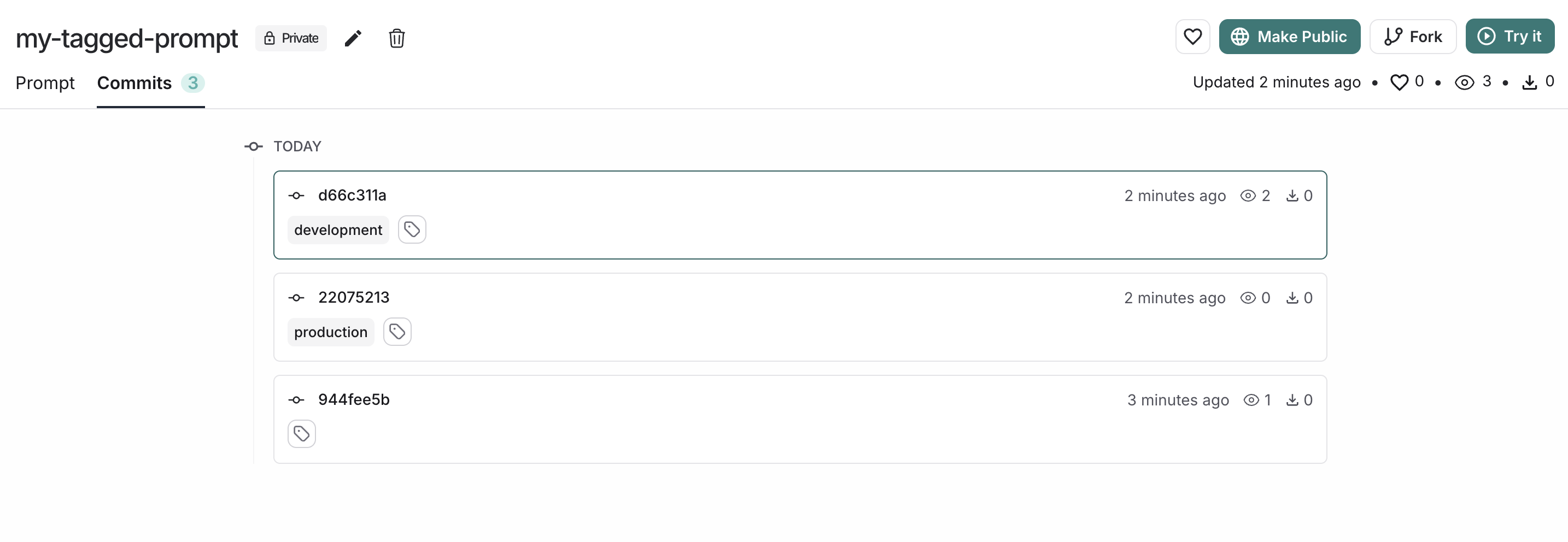
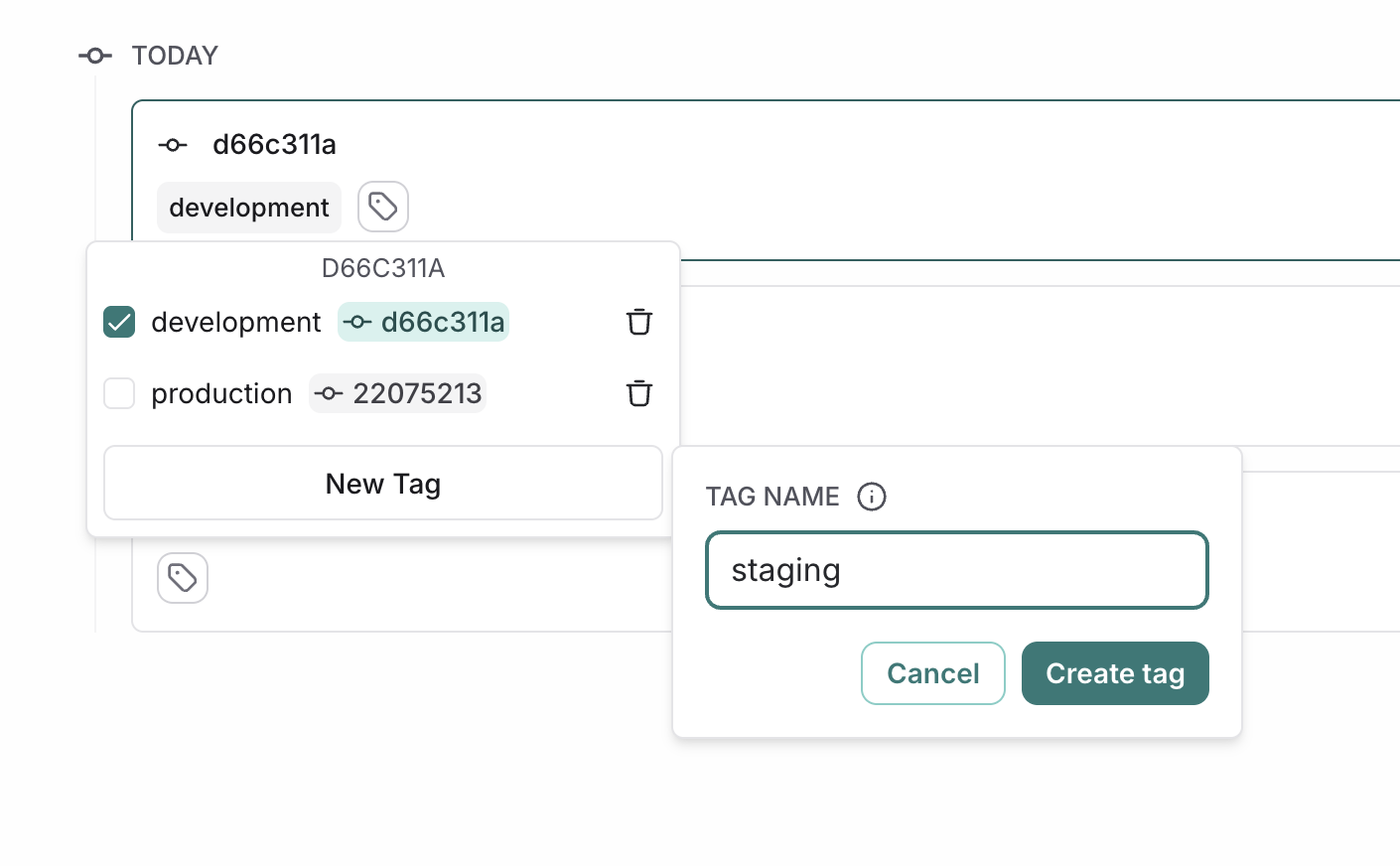
Move a tag
To point a tag to a different commit, click on the tag icon next to the destination commit, and select the tag you want to move. This will automatically update the tag to point to the new commit.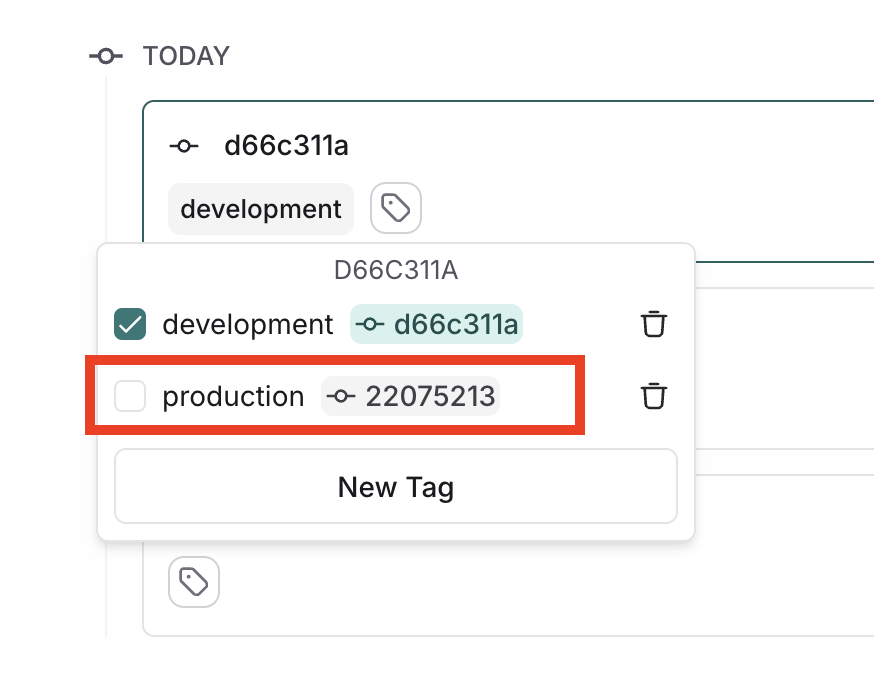
Delete a tag
To delete a tag, click on the delete icon next to the tag you want to delete. This will delete the tag altogether and it will no longer be associated with any commit.Use tags in code
Tags provide a stable way to reference specific versions of your prompts in code. Instead of using commit hashes directly, you can reference tags that can be updated without changing your code. Here is an example of pulling a prompt by tag in Python:Trigger a webhook on prompt commit
You can configure a webhook to be triggered whenever a commit is made to a prompt. Some common use cases of this include:- Triggering a CI/CD pipeline when prompts are updated.
- Synchronizing prompts with a GitHub repository.
- Notifying team members about prompt modifications.
Configure a webhook
Navigate to the Prompts section in the left-hand sidebar or from the application homepage. In the top right corner, click on the+ Webhook button.
Add a webhook URL and any required headers.
You can only configure one webhook per workspace. If you want to configure multiple per workspace or set up a different webhook for each prompt, let us know in the LangChain Forum.
prompt_id: The ID of the prompt that was committed.prompt_name: The name of the prompt that was committed.commit_hash: The commit hash of the prompt.created_at: The date of the commit.created_by: The author of the commit.manifest: The manifest of the prompt.
Trigger the webhook
向某个提示提交更改即可触发已配置的 Webhook。 如果在 Playground 中执行此操作,系统会提示您取消选择不希望触发的 Webhook。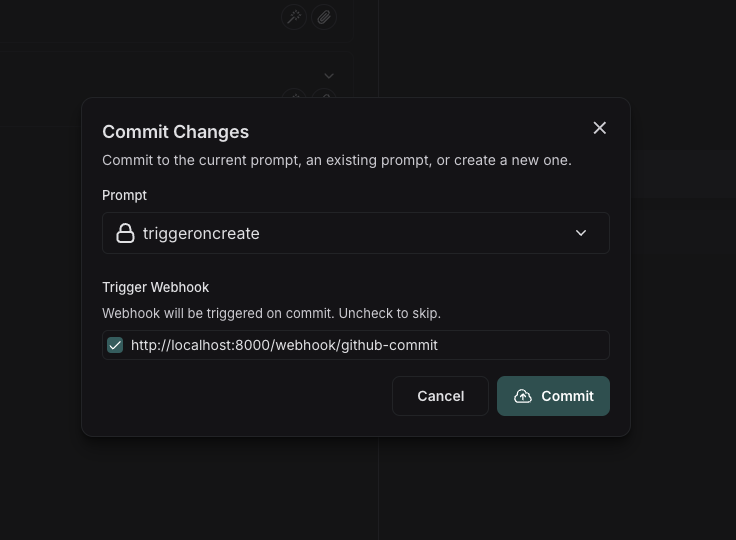 如果通过 API 提交,可以将
 skip_webhooks 参数设置为 true 或指定需要忽略的 webhook id 数组,以跳过相应 Webhook。详情请参阅 API 文档。
Public prompt hub
LangSmith 的公共提示库收录了 LangChain 社区创建的提示,可供您参考。提示均由用户创建,未经 LangChain 审核或背书,使用时请自行承担风险。使用 Prompt Hub 需遵守我们的服务条款。