版本化数据集
在 LangSmith 中,数据集是版本化的。这意味着每次您在数据集中添加、更新或删除示例时,都会创建数据集的新版本。创建数据集的新版本
任何时候您在数据集中添加、更新或删除示例时,都会创建数据集的新版本。这允许您跟踪数据集随时间的更改并了解数据集如何演变。 默认情况下,版本由更改的时间戳定义。当您在 Examples 选项卡中单击数据集的特定版本(按时间戳)时,您将找到该时间点的数据集状态。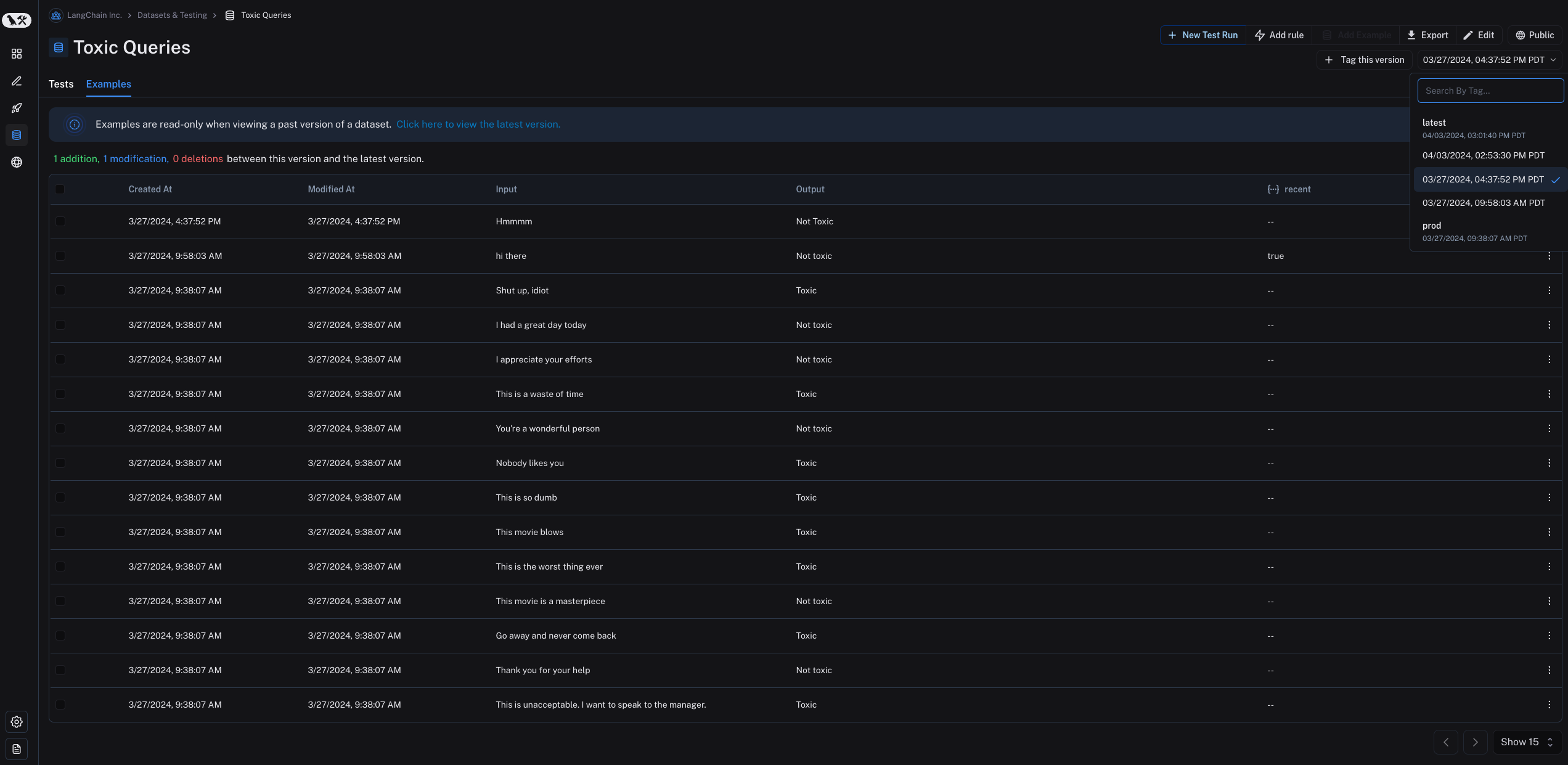 请注意,在查看数据集的过去版本时,示例是只读的。您还将看到此版本的数据集与最新版本的数据集之间的操作。
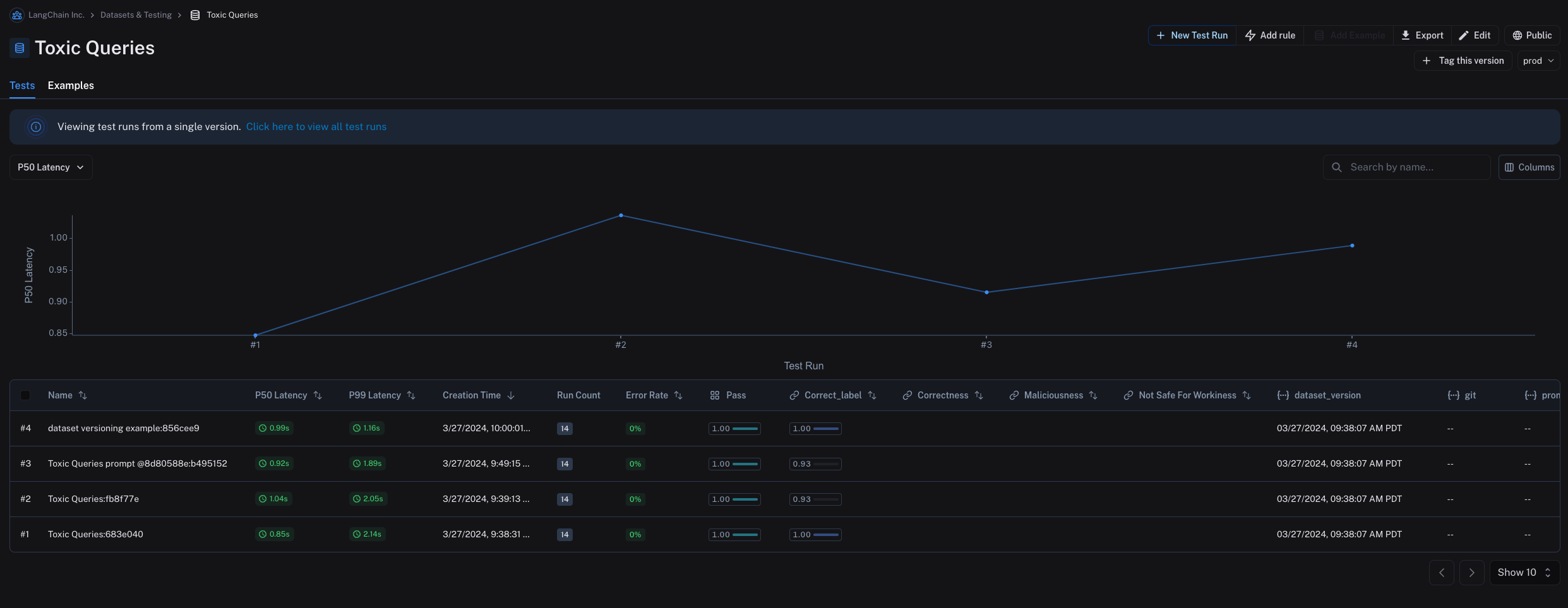
默认情况下,数据集的最新版本显示在 Examples 选项卡中,所有版本的实验显示在 Tests 选项卡中。
Tag a version
You can also tag versions of your dataset to give them a more human-readable name, which can be useful for marking important milestones in your dataset’s history. For example, you might tag a version of your dataset as “prod” and use it to run tests against your LLM pipeline. You can tag a version of your dataset in the UI by clicking on + Tag this version in the Examples tab. You can also tag versions of your dataset using the SDK. Here’s an example of how to tag a version of a dataset using the Python SDK:
Evaluate on a specific dataset version
You may find it helpful to refer to the following content before you read this section:
Use list_examples
You can use evaluate / aevaluate to pass in an iterable of examples to evaluate on a particular version of a dataset. Use list_examples / listExamples to fetch examples from a particular version tag using as_of / asOf and pass that into the data argument.
Evaluate on a split / filtered view of a dataset
You may find it helpful to refer to the following content before you read this section:
Evaluate on a filtered view of a dataset
You can use thelist_examples / listExamples method to fetch a subset of examples from a dataset to evaluate on.
One common workflow is to fetch examples that have a certain metadata key-value pair.
Evaluate on a dataset split
You can use thelist_examples / listExamples method to evaluate on one or multiple splits of your dataset. The splits parameter takes a list of the splits you would like to evaluate.
Share a dataset
Share a dataset publicly
From the Dataset & Experiments tab, select a dataset, click ⋮ (top right of the page), click Share Dataset. This will open a dialog where you can copy the link to the dataset.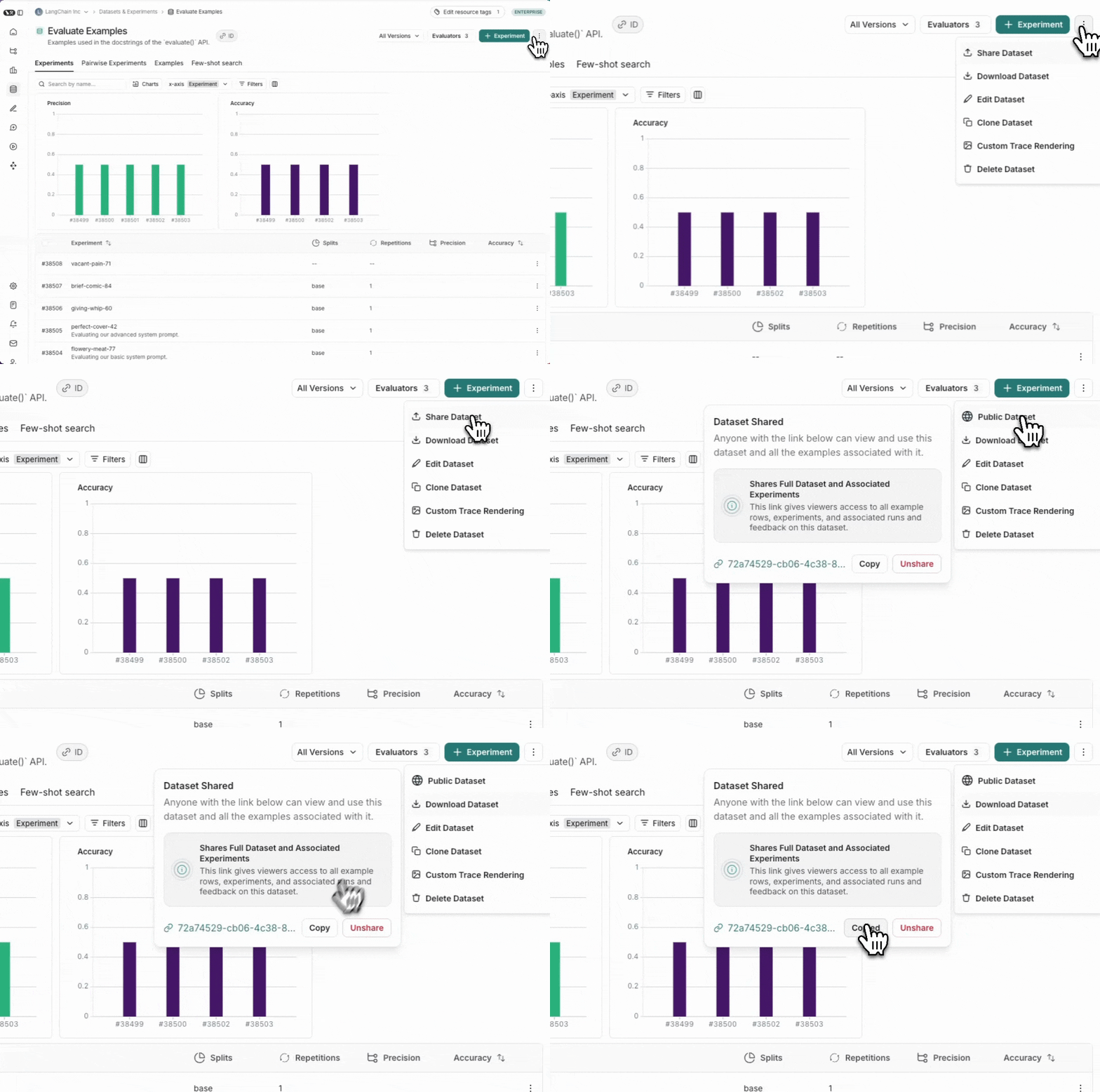
Unshare a dataset
-
Click on Unshare by clicking on Public in the upper right hand corner of any publicly shared dataset, then Unshare in the dialog.

- Navigate to your organization’s list of publicly shared datasets, by clicking on Settings -> Shared URLs or this link, then click on Unshare next to the dataset you want to unshare.

Export a dataset
You can export your LangSmith dataset to a CSV, JSONL, or OpenAI’s fine tuning format from the LangSmith UI. From the Dataset & Experiments tab, select a dataset, click ⋮ (top right of the page), click Download Dataset.
Export filtered traces from experiment to dataset
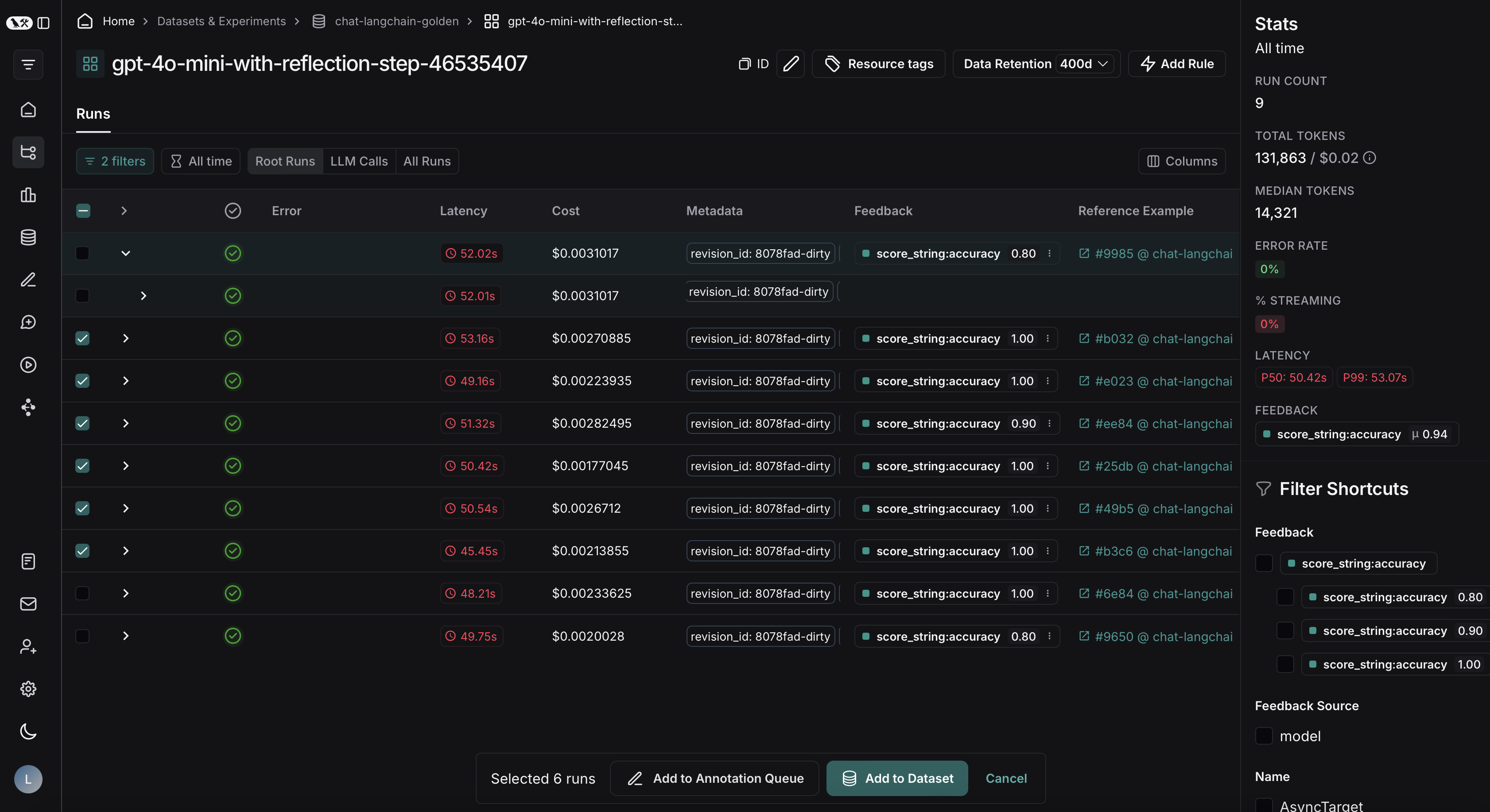
After running an offline evaluation in LangSmith, you may want to export traces that met some evaluation criteria to a dataset.View experiment traces
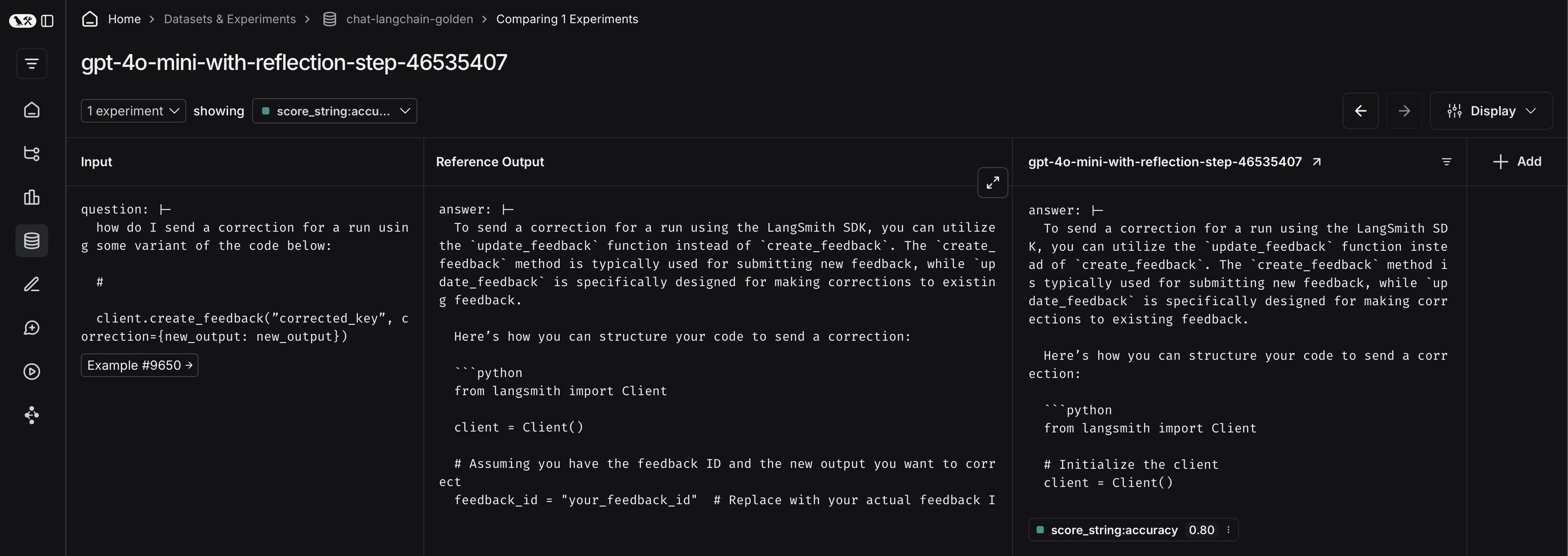 To do so, first click on the arrow next to your experiment name. This will direct you to a project that contains the traces generated from your experiment.
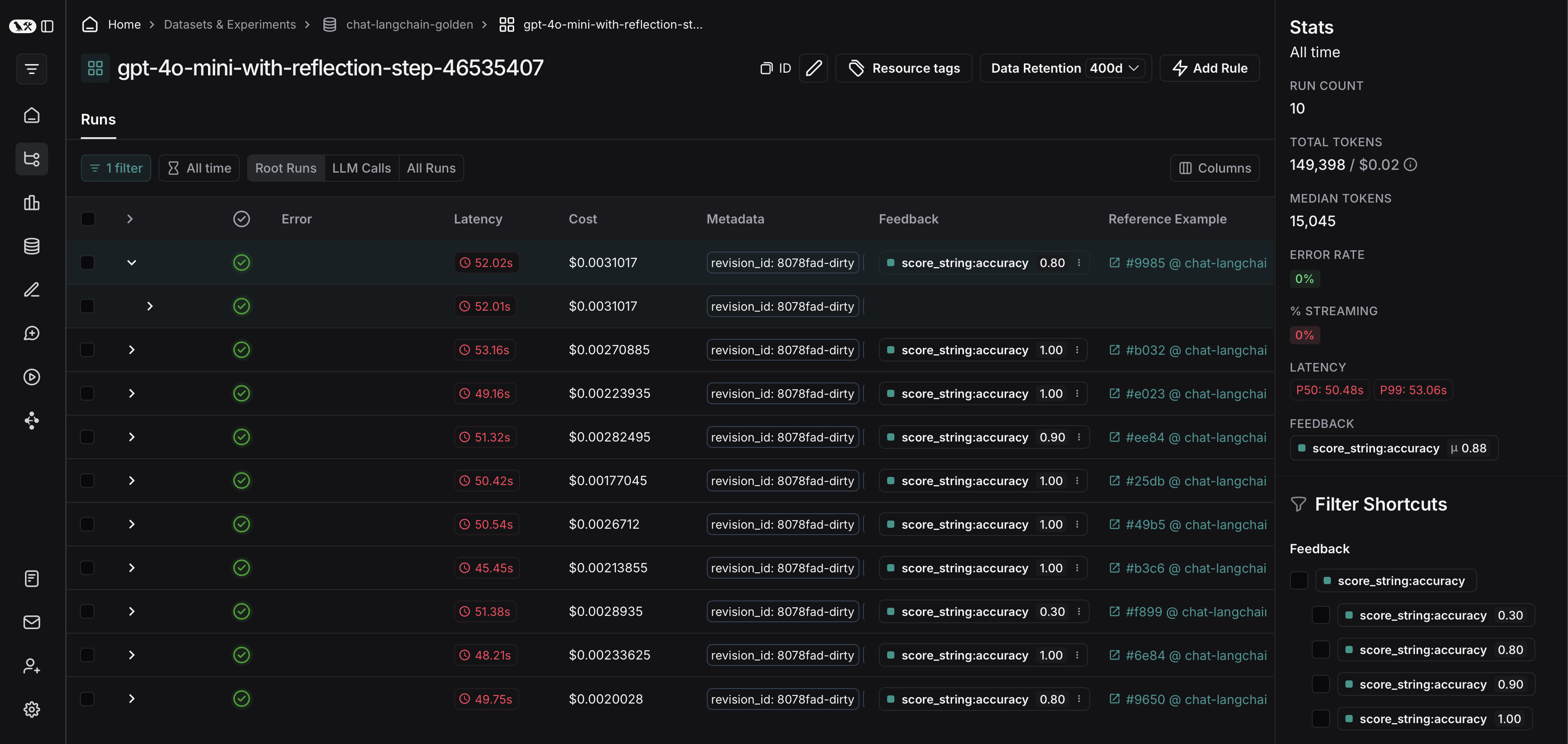 From there, you can filter the traces based on your evaluation criteria. In this example, we’re filtering for all traces that received an accuracy score greater than 0.5.
 After applying the filter on the project, we can multi-select runs to add to the dataset, and click Add to Dataset.