

创建注释队列
 要创建注释队列,请通过主页或左侧导航栏导航到 Annotation queues 部分。然后单击右上角的 + New annotation queue。
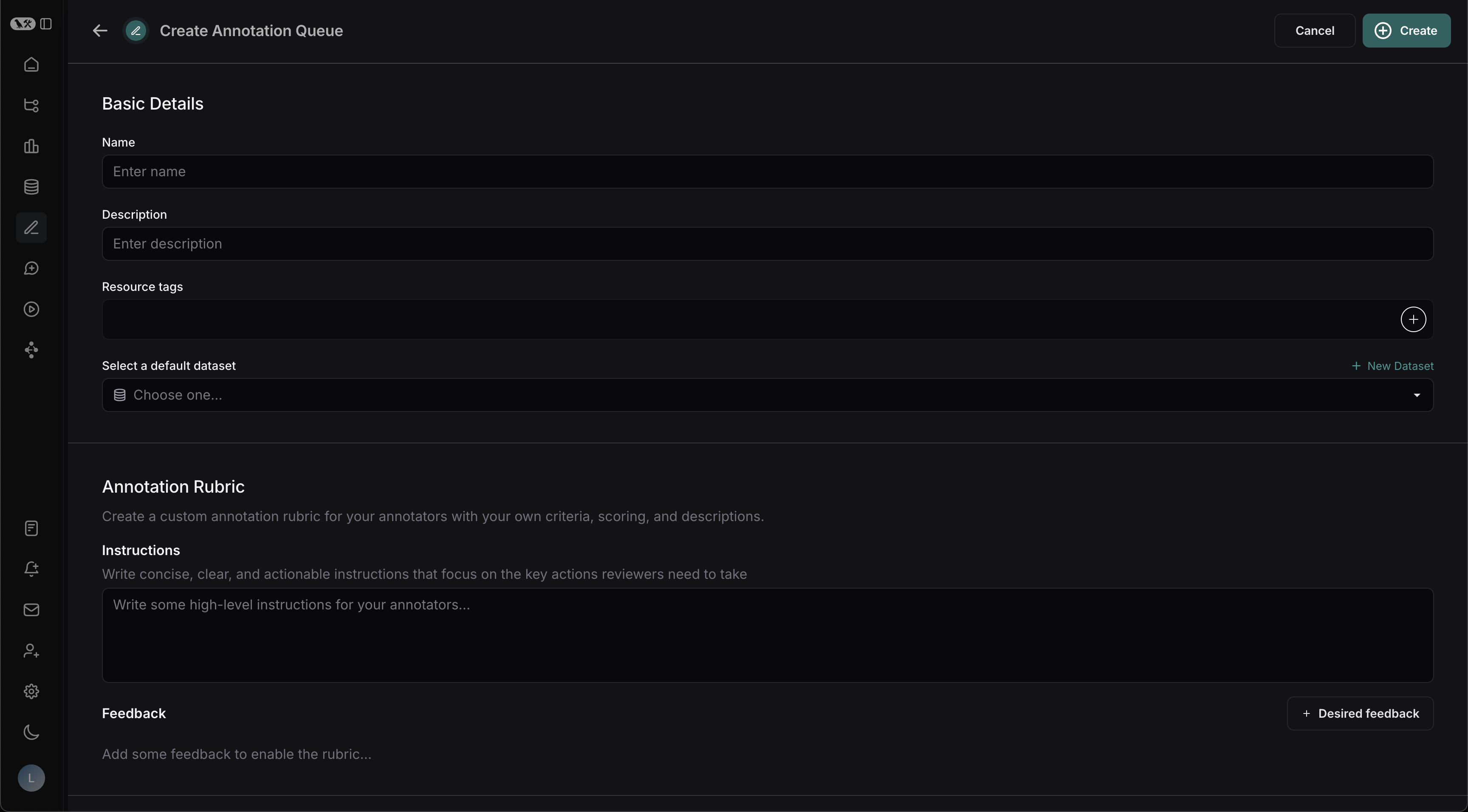
基本详细信息
在表单中填写队列的名称和描述。您还可以为队列分配默认数据集,这将简化将某些运行的输入和输出发送到 LangSmith 工作区中数据集的过程。注释标准
首先为注释者起草一些高级说明,这些说明将在每次运行时显示在侧边栏中。 接下来,单击”+ Desired Feedback”以将反馈键添加到注释队列。注释者将在每次运行时看到这些反馈键。为每个添加描述,以及如果反馈是分类的,则为每个类别添加简短描述。 审查者将看到以下内容:
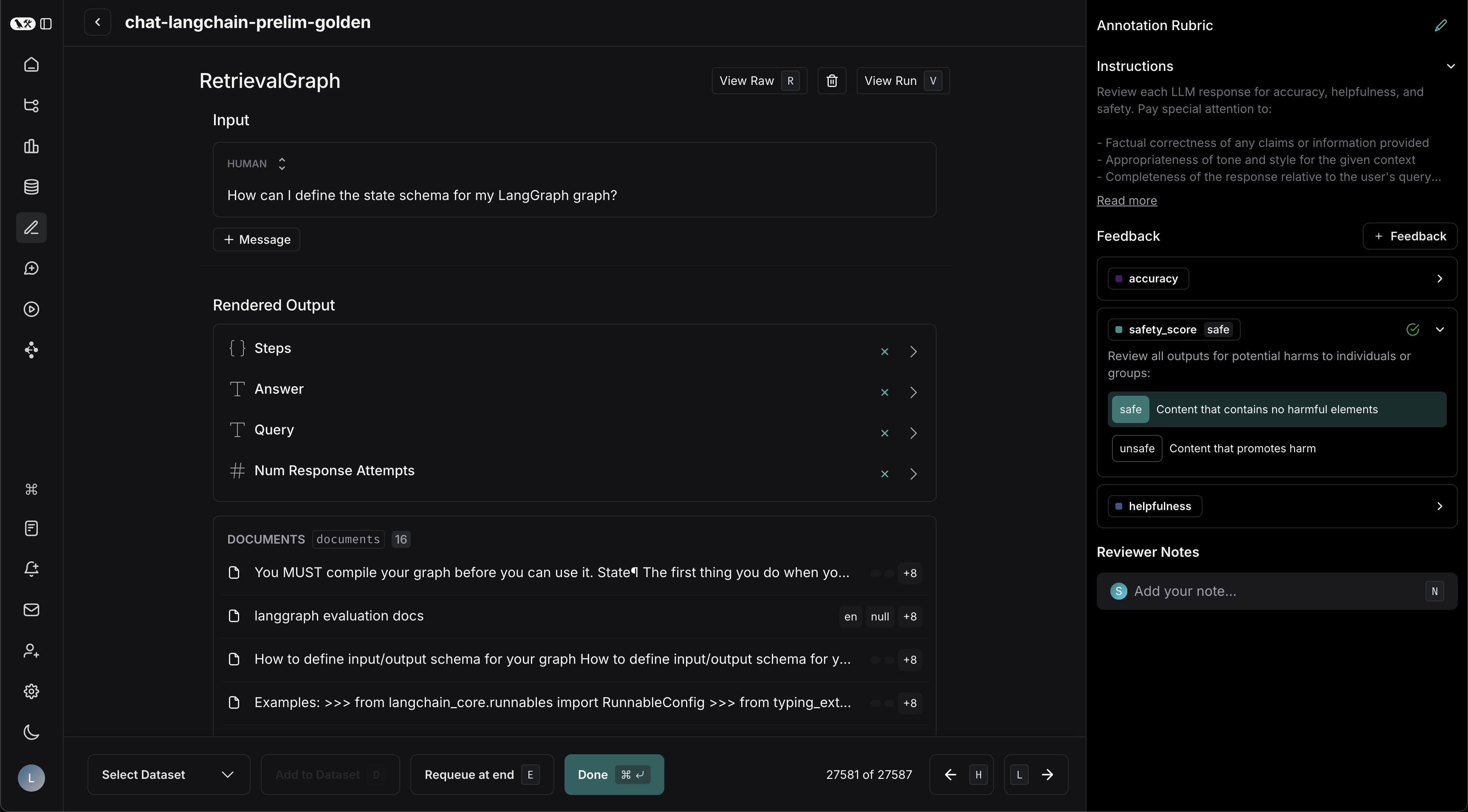
Collaborator Settings
There are a few settings related to multiple annotators:-
Number of reviewers per run: This determines the number of reviewers that must mark a run as “Done” for it to be removed from the queue. If you check “All workspace members review each run,” then a run will remain in the queue until all workspace members have marked it “Done”.
- Reviewers cannot view the feedback left by other reviewers.
- Comments on runs are visible to all reviewers.
- Enable reservations on runs: We recommend enabling reservations. This will prevent multiple annotators from reviewing the same run at the same time.
- How do reservations work?
- What happens if time runs out?
Clicking “Requeue at end” will only move the current run to the end of the current user’s queue; it won’t affect the queue order of any other user. It will also release the reservation that the current user has on that run.

Assign runs to an annotation queue
To assign runs to an annotation queue, either:-
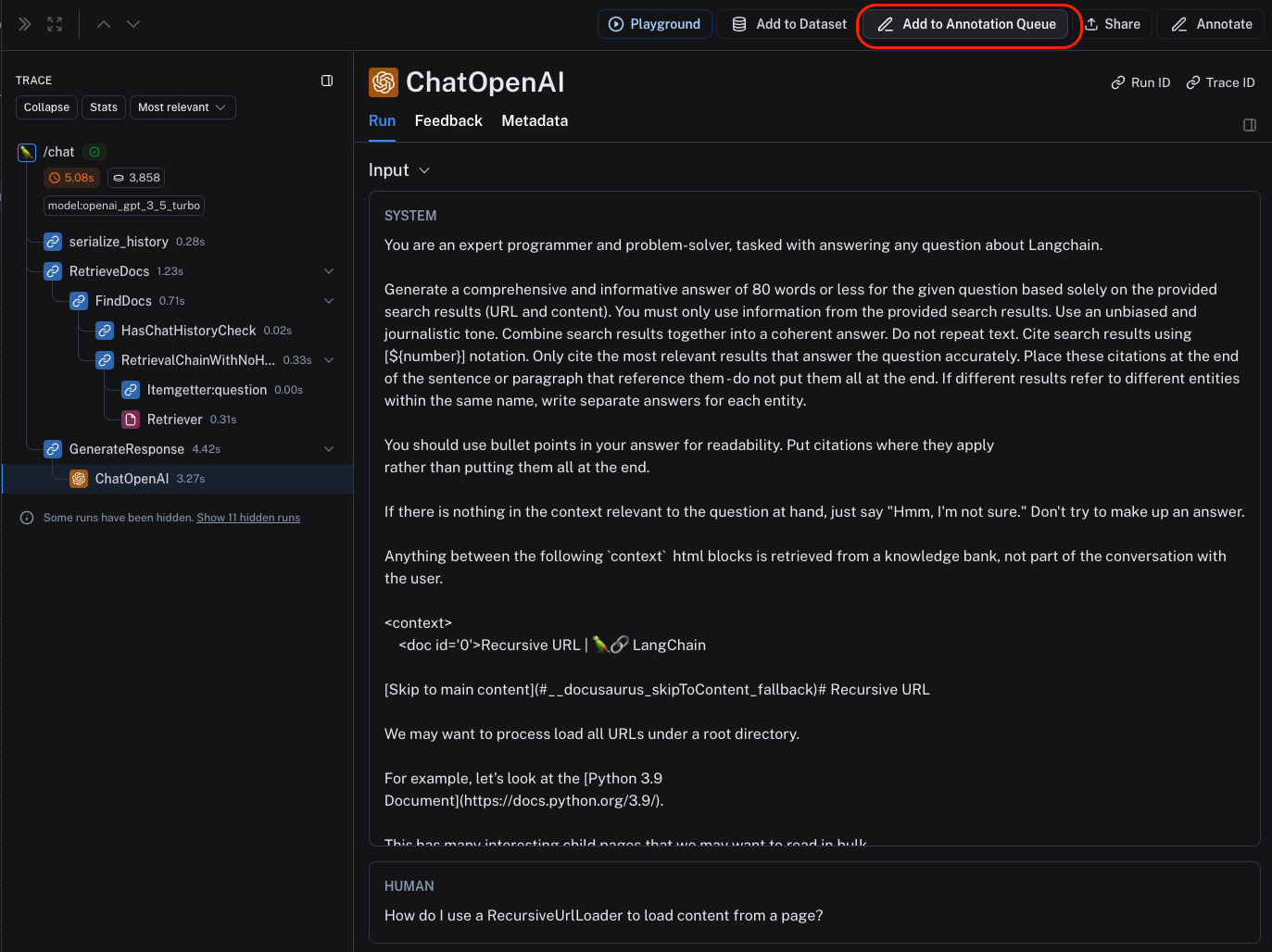
Click on Add to Annotation Queue in top right corner of any trace view. You can add ANY intermediate run (span) of the trace to an annotation queue, not just the root span.
-
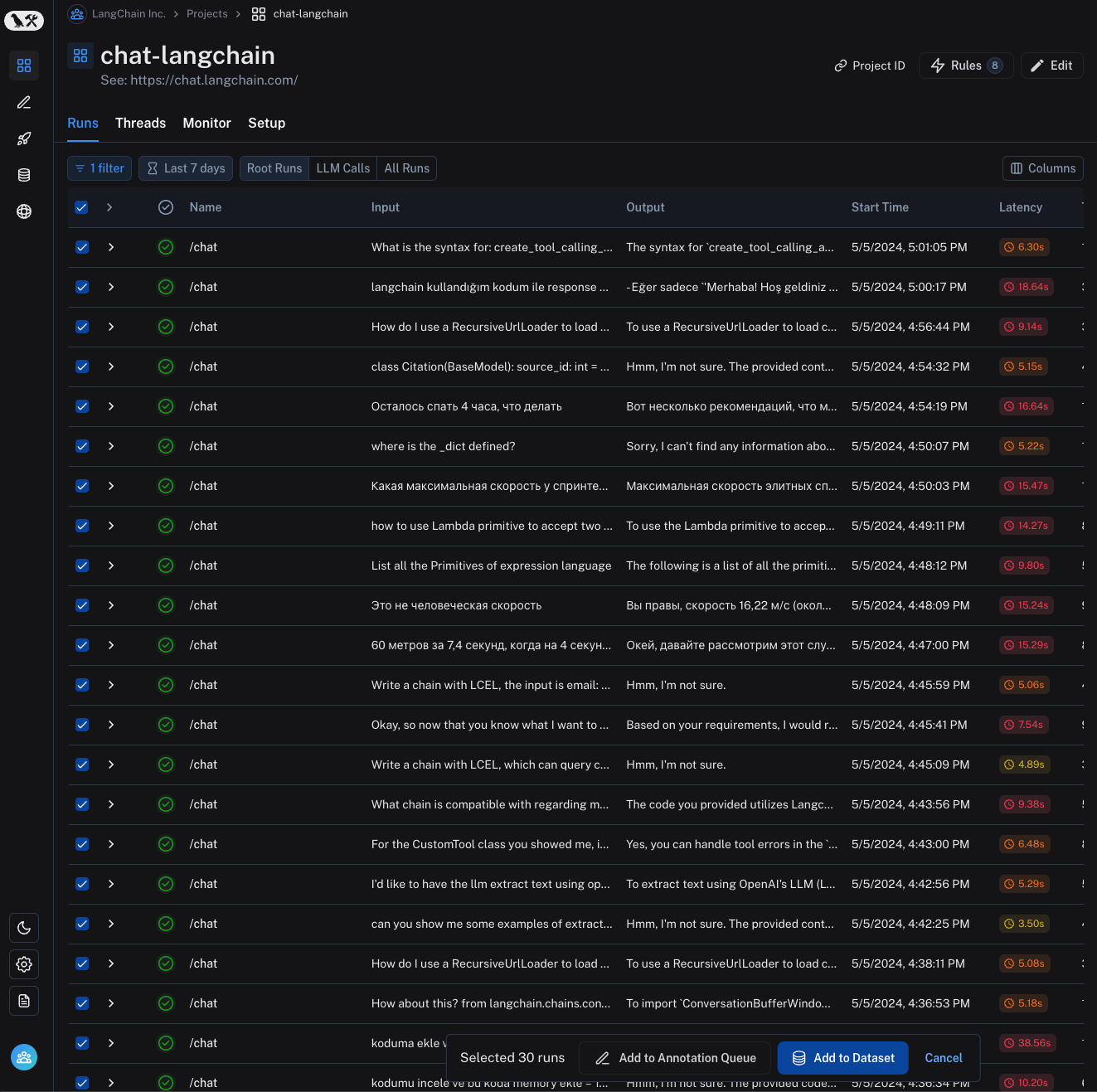
Select multiple runs in the runs table then click Add to Annotation Queue at the bottom of the page.
- Set up an automation rule that automatically assigns runs which pass a certain filter and sampling condition to an annotation queue.
-
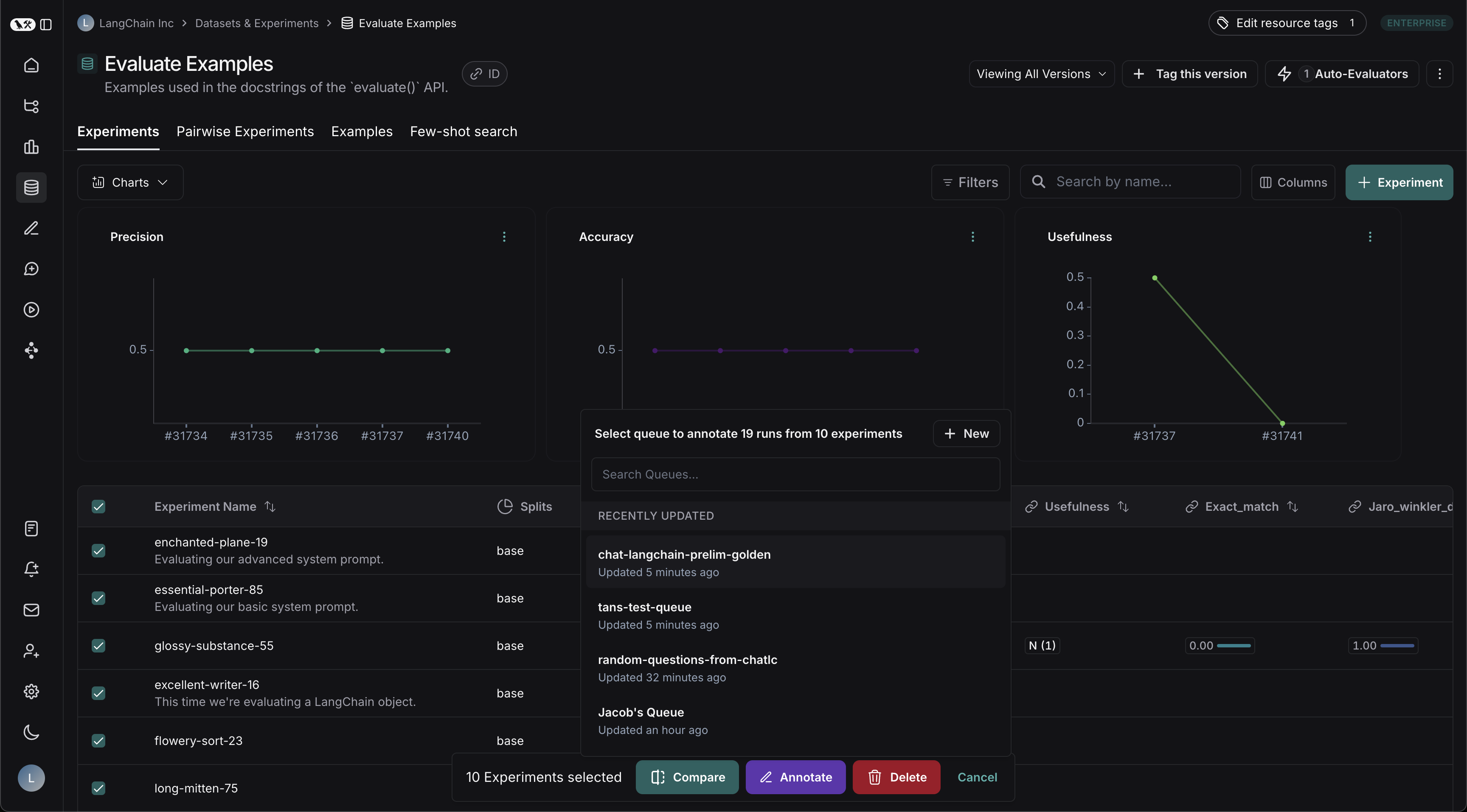
Select one or multiple experiments from the dataset page and click Annotate. From the resulting popup, you may either create a new queue or add the runs to an existing one:
It is often a very good idea to assign runs that have a certain user feedback score (eg thumbs up, thumbs down) from the application to an annotation queue. This way, you can identify and address issues that are causing user dissatisfaction. To learn more about how to capture user feedback from your LLM application, follow this guide.
Review runs in an annotation queue
To review runs in an annotation queue, navigate to the Annotation Queues section through the homepage or left-hand navigation bar. Then click on the queue you want to review. This will take you to a focused, cyclical view of the runs in the queue that require review. You can attach a comment, attach a score for a particular feedback criteria, add the run a dataset and/or mark the run as reviewed. You can also remove the run from the queue for all users, despite any current reservations or settings for the queue, by clicking the Trash icon next to “View run”. The keyboard shortcuts shown can help streamline the review process.